
Shopping Cart Function
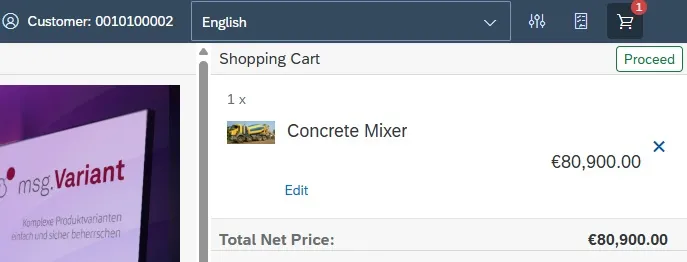
Initial screen shopping cart function
When you access msg.Variant CoFE with the shopping cart function, the system asks you to select which customer and which sales document type you want.
You can always change the customer using the customer search until the configuration of a material has been started.
You can search and select materials and products using the search function in the created categories, in the material overview or in the recommended products.
You can create and control categories, display variants of materials/products, image maintenance etc. using “Global administration”, described in chapter Global Administration.
Functions in the Shopping Cart
Access as Internal Business Partner
When you access the shopping cart as an internal user, a pop-up window prompts you for the sales document type, sales organization, distribution channel and division. After you have selected the relevant data, the available customers are pre-selected in accordance with the data specified above.

Pop-up Window Sales Data Internal Business Partner
You select the customer after this selection by using another window in which you can filter by customer, name, search term, postcode, city and country. Click on the  button to start the search.

Pop-Up Window Customer Selection Internal Business Partner
The customer can always be changed as long as the shopping cart is empty. Once the shopping cart contains an item, you can no longer change the customer.
After having selected the sales data and the customer, you can start the configuration.
Access as External Business Partner
When you access the shopping cart as an external user, a pop-up window prompts you for the customer, sales document type, sales organization, distribution channel and division. Prerequisite for this is that the external business partner is maintained in the Customizing table as described in chapter External Business Partner.

Pop-Up Window Selection Sales Data External Business Partner
After you have selected the relevant data, you can start the configuration. The customer can always be changed as long as the shopping cart is empty. Once the shopping cart contains an item, you can no longer change the customer.
Customer Search (Internal Business Partner)
You can always change the selected customer until the configuration has been started. This is done by using the “Customer” button. After you have clicked on the customer button, a pop-up window is displayed in which you can search for and filter by other customers.

Display customer

Pop-Up Window Customer Search
Global Administration
The function of global administration has been described in chapter Global Administration.
Shopping Cart ID
You can use the button “Open shopping cart”  to display a pop-up window in which all saved shopping carts are displayed, which you can call up again with a click. Only shopping carts, which have not yet been ordered, are saved. As soon as they are released for ordering, they are removed from memory.
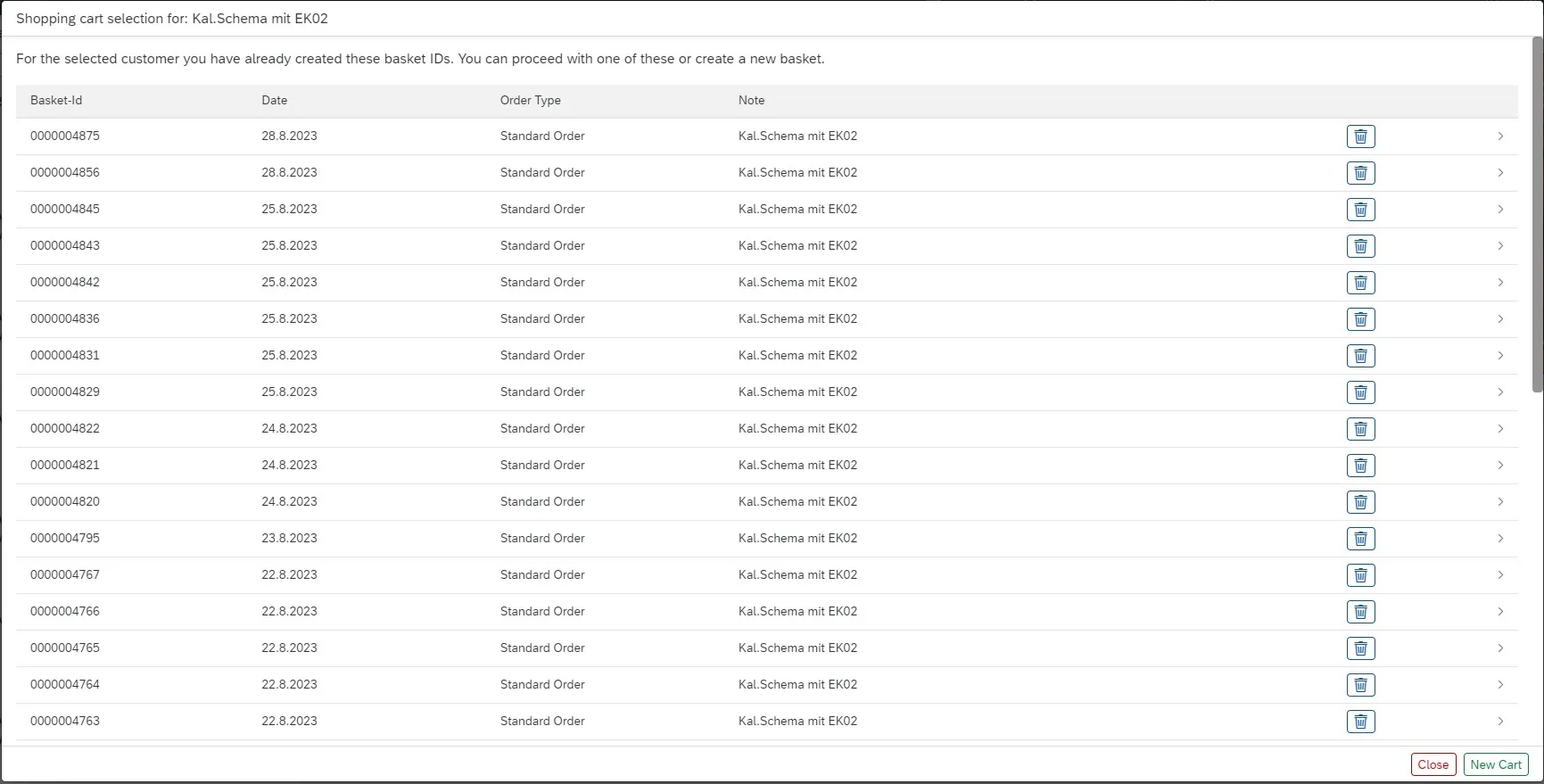
Pop-Up Window Saved Shopping Carts
When you are currently working on a shopping cart, it will be grayed out so that you cannot select it.

Current Shopping Cart ID
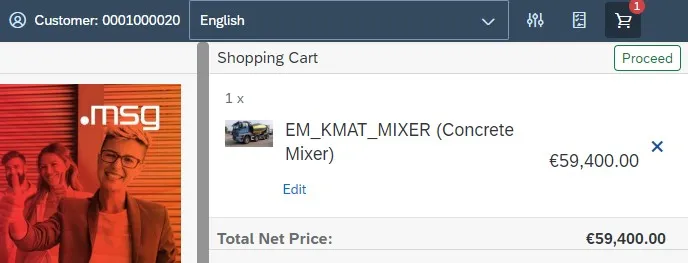
Shopping Cart Contents
Shopping Cart
To call up the shopping cart, use the button Shopping cart  . The shopping cart contains all the configured materials, including unit prices and total prices.
PDF Generation
You can create a PDF for the entire shopping cart or for individual items. The PDF file contains all the important data for the product and the selected customer.
PDF Generation for individual position
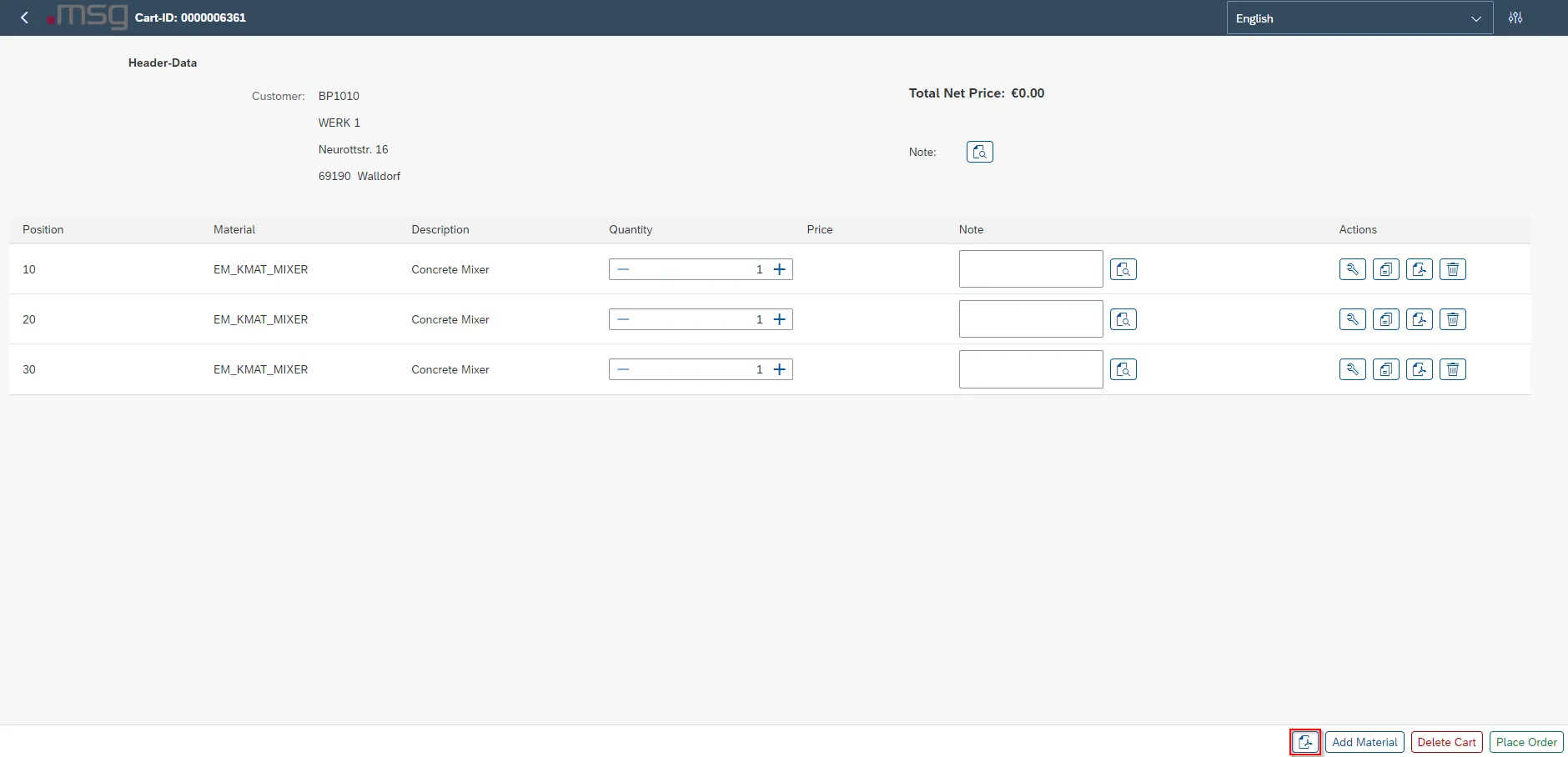
The button  in the Actions column is used to generate a PDF for the selected item; this can be done for all items in the shopping cart.
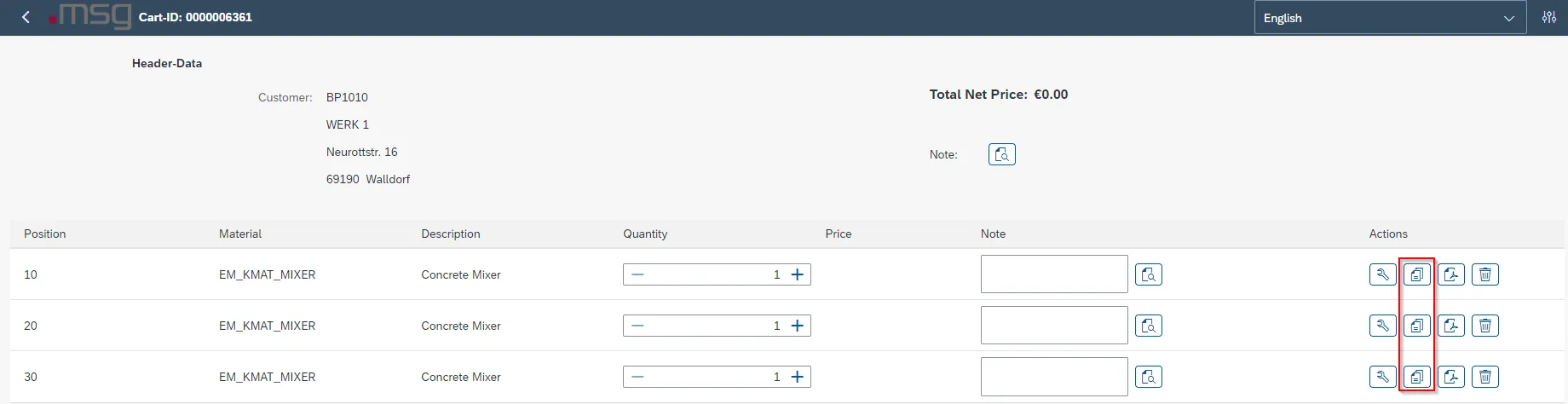
PDF Generation for the entire shopping cart
The button in the footer bar of the shopping cart generates a PDF of the entire shopping cart.
Configuration in the Shopping Cart
The configurator’s behavior is identical; regardless, if you access it from a document or from the shopping cart. The only difference is the navigation.
When you access it with shopping cart function, you can get back to the initial screen. You can control this using the “Arrow” (top left in the header) or by using the “Back” button (bottom right in the footer). When you go back, the current status of the configuration is saved and can be called up again.
Creating a Customer Order/Quotation
In order to create a customer order or quotation after the configuration, call up the shopping cart and click on the button “Proceed”.
Shopping Cart with “Proceed” Button
In the overview of the shopping cart, the user can add a note to the shopping cart by using the  button. This note is issued when saving the shopping cart ID.
In the item overview, you can find all configured materials to which a note can be added and where you can adjust the quantity.

Overview Item in Shopping Cart
The following interactions can be made by the user for any item:
| Specification | Icon | Description |
|---|---|---|
| Edit |  | You can retroactively change the item using this button. After confirming, the user is taken to the configuration. |
| Copy |  | You can use this button to copy the item and to save it in a new item. |
| Display /Generate PDF |  | You can use this button to display/generate a PDF document. |
| Delete item |  | You can use this button to delete items from the shopping cart. |
msg.Variant CoFE – Button Overview in the Shopping Cart of an Item
To place an order/quotation, click on the  button. The following actions are available to the user in the footer:
| Icon/button | Description |
|---|---|
 | You can use this button to display/generate a PDF document of the entire shopping cart. |
 | You can use this button to add further materials to the shopping cart. |
 | You can use this button to delete/empty the entire shopping cart. |
| You can use this button to place an order and to send it to the backend and to automatically create a customer order/quotation. |
msg.Variant CoFE – Button Overview in the Shopping Cart Footer
After clicking on the order button, a customer order or quotation is created in the SAP Backend.
The created customer order or quotation can be adjusted and edited at any time in the backend.