
Customizing
Global Configuration – /TVC/VC_BO_CONF_GLOBAL
In this section, you define default settings so that the system is ready to run upon delivery. You can overwrite these settings with customer-specific settings using the Customizing in /TVC/VC_BO_CONF_CUST – Customer configuration. All Customizing IDs including description are available there.
![C:\Users\rthye\AppData\Local\Microsoft\Windows\Temporary Internet Files\Content.IE5\FRUFPAW1\MC900432617[1].png](/_astro/image5.BY_NdaeD_2raMmQ.webp) Note: As this area is used for delivery and these settings can be overridden via the customer configuration, you may not make any settings here. For release updates, the settings made are always set to the delivery setting!
Note: As this area is used for delivery and these settings can be overridden via the customer configuration, you may not make any settings here. For release updates, the settings made are always set to the delivery setting!
Customer Configuration – /TVC/VC_BO_CONF_CUST
In this section, you can make customer-specific settings. Global Customizing is overwritten/annulled using these settings.
Configuration
In the „Configuration” dialog structure, you can make customer-specific settings such as the definition of the logo. These entries are not transported but must be made in each system.
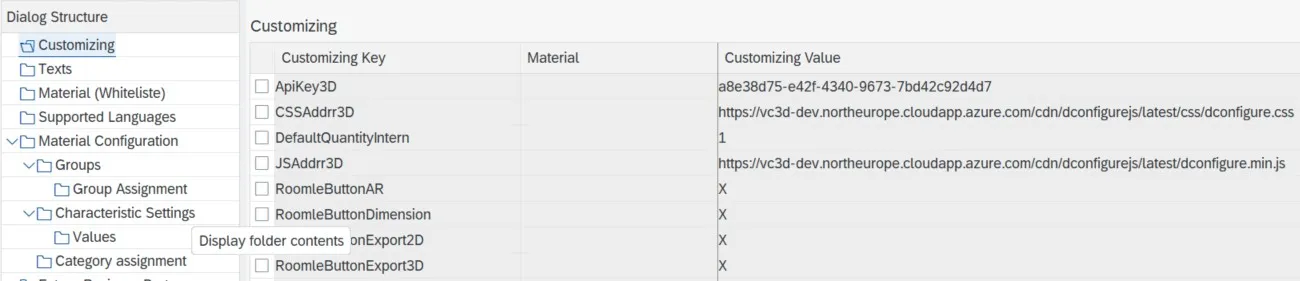
/TVC/VC_BO_CONF_CUST – Dialog Structure Configuration
You can take an exact description of the individual attributes from the manual for Variant Configuration API.
Texts
In the “Texts” dialog structure, you can make customer-specific settings such as the definition of prices. These entries are not transported but must be made in each system.

/TVC/VC_BO_CONF_CUST – Dialog Structure Texts
Material-Inclusion-List
In this dialog structure, materials can be defined that can be configured with msg.Variant CoFE. With this list, not all configurable materials are relevant but only the materials defined in the Material-Inclusion-List.
This list is only considered when the attribute materialAllMatNrRelevantForConfiguration is not activated in the maintenance view “/TVC/VC_BO_CONF_GLOBAL”.
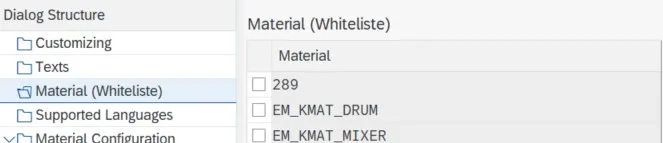
/TVC/VC_BO_CONF_CUST – Dialog Structure Material-Inclusion-List
Supported Languages
If you do not maintain languages in this section, the system uses the default languages. These are German, English, Chinese and Spanish.
As soon as languages are maintained in this table, only those languages are used for msg.Variant CoFE.
Material Configuration
All changes made on the maintenance interface of msg.Variant CoFE are saved in this database table. Do not make changes to the database table but only in the administration interface of msg.Variant CoFE.
These changes in msg.Variant CoFE only affect the configurator interface and are not transported to the modeling environment.

/TVC/VC_BO_CONF_CUST – Dialog Structure Material Configuration
External Business Partner
The external business partner table controls the creation of an order using the shopping cart function of an external user.
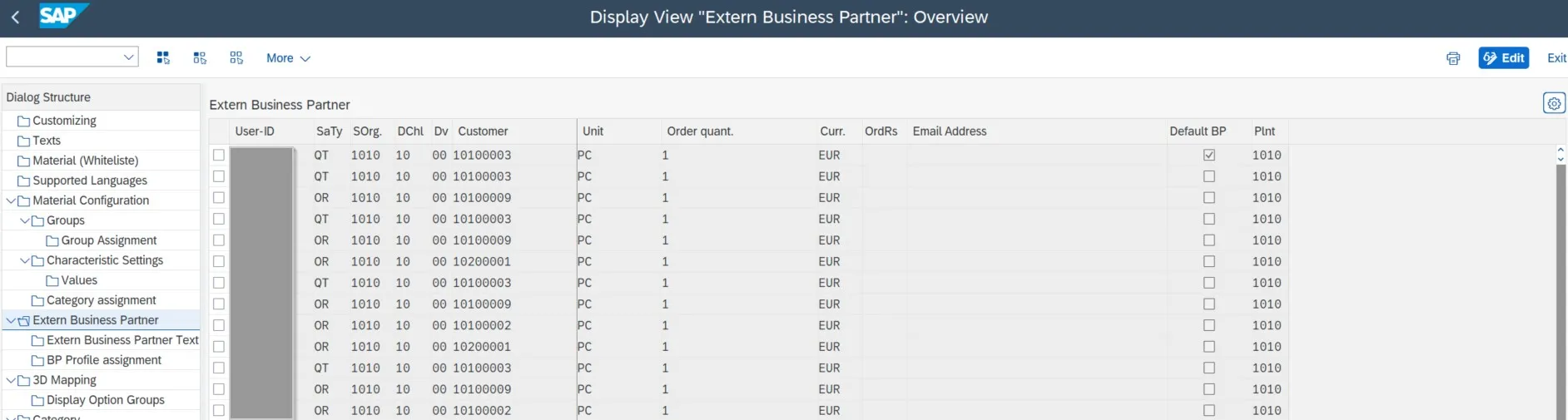
/TVC/VC_BO_CONF_CUST – Dialog Structure Business Partner
The following table shows the columns with a detailed description.
| Columns | Description |
|---|---|
| User ID | Table for calling-up the shopping cart |
| Plnt (Plant) | Backup for the determination of the plant |
| SaTy (Sales Document Type) | Selection of sales document type with which the shopping cart is to be created (example: QT/OR) |
| Sales area | Area in which the shopping cart is created:
All customers from this sales area can be used for creating the shopping cart. |
| Customer | Unique customer that is assigned to the business partner |
| Default BP | When no entry is stored for the logged in business partner/users, the system uses the necessary information of the default BP. You cannot create a shopping cart when no default BP is maintained. |
Detailed description of external business table
The shopping cart is created with the sales document type and in the maintained distribution channel (sales organization, distribution channel, division) for the corresponding external business partner. This selection is defined each time using a pop-up window after the initial screen. The external business partner can always change this selection as long as the shopping cart is empty. From the moment a product is added to the shopping cart, this is no longer possible.

Pop-Up Window Customer Selection as External Business Partner
External business partners must be maintained as otherwise the shopping cart cannot be configured. When the external business partner of the Customizing table is not defined, the following error message is displayed:
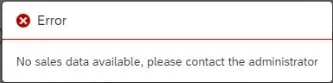
Pop-up window error message external business partner